From script to the end-of-day report, in one app that also works offline.
01
Script & decoupage
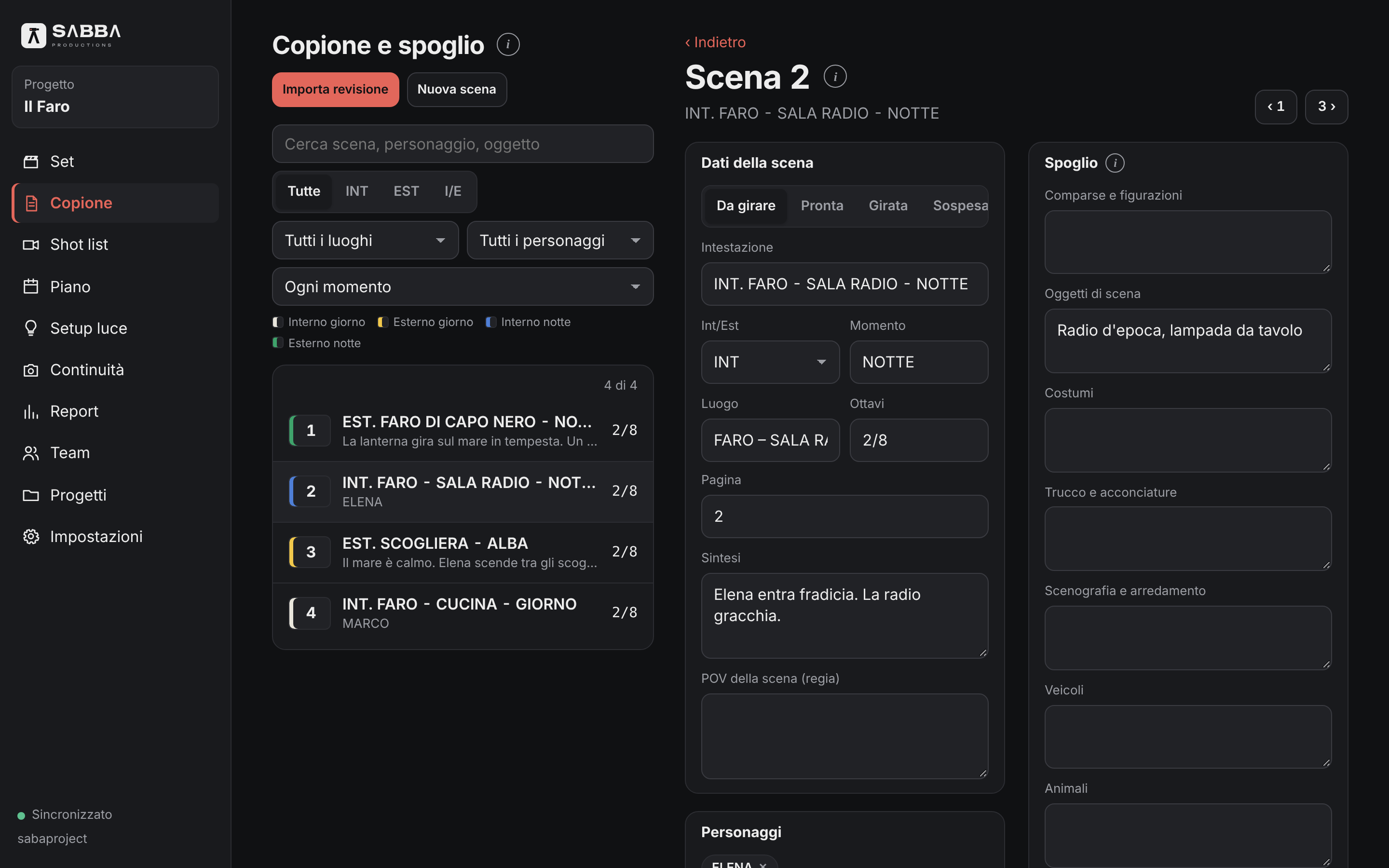
Import your Final Draft (.fdx) script, including scenes, characters and the decoupage you added in the notes (beats, camera, sound, coverage and point of view). When a revision arrives, reimport the file and keep the script breakdown you have already completed.
.fdx import and revisions
Decoupage from script notes
Existing breakdown retained
Script and breakdownItalian interface · Enlarge screenshot
02
Script breakdown
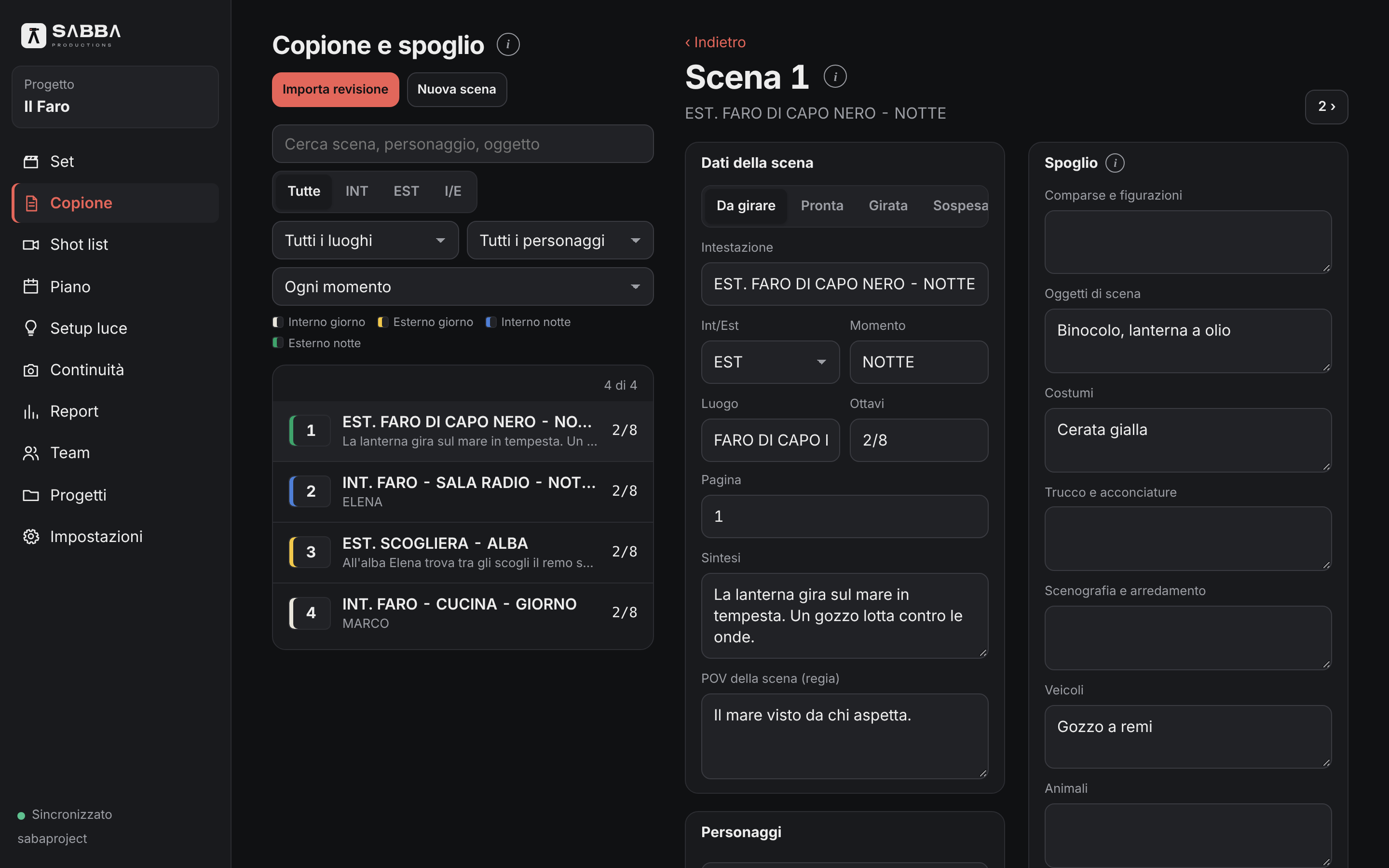
For each scene: characters, extras, props, costumes, makeup, vehicles and effects. Each department gets its own list, using the production strip colors.
Characters and extras
Props, costumes and makeup
Vehicles and effects
Scene breakdownItalian interface · Enlarge screenshot
03
Shot list
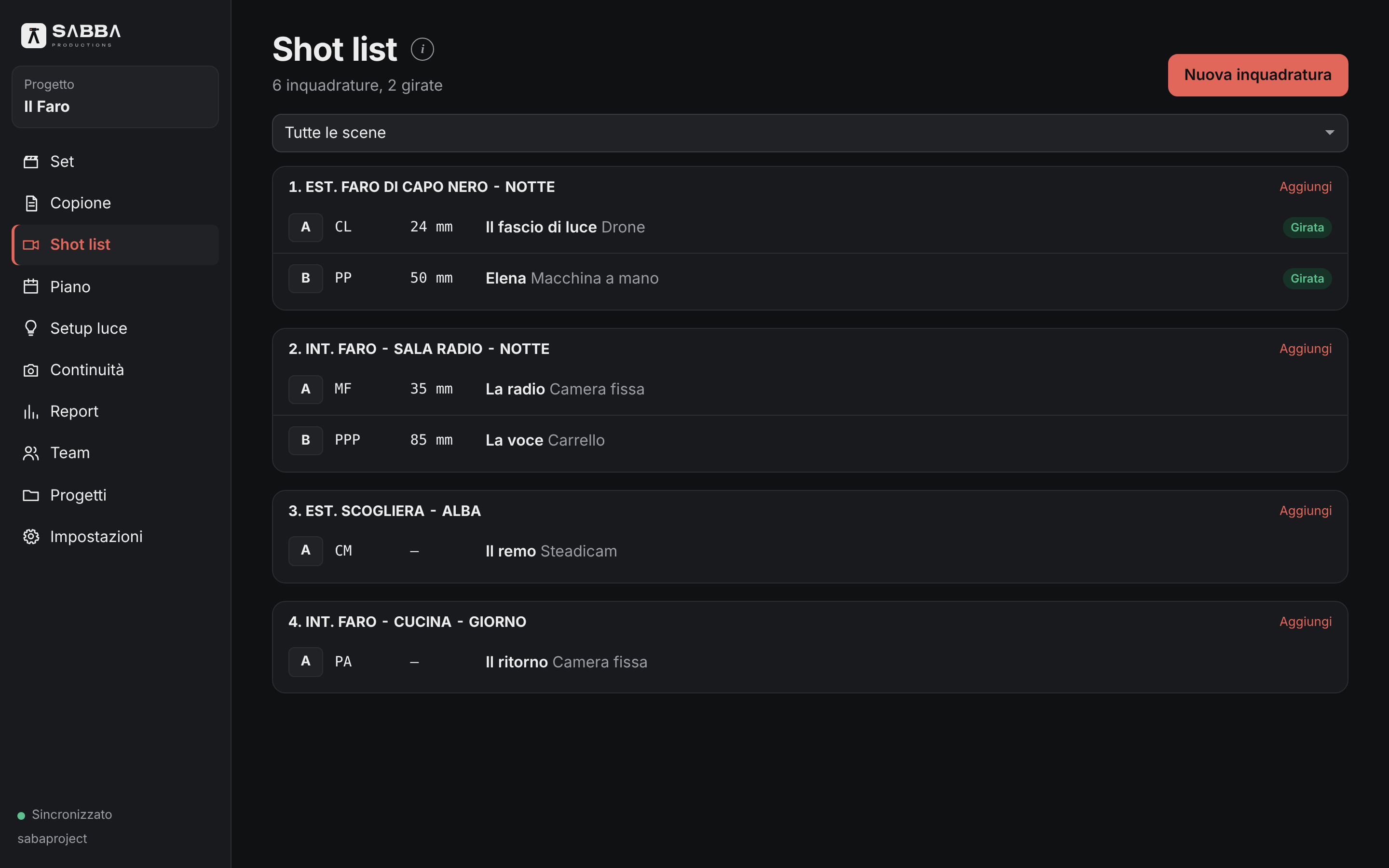
Plan the shots for each scene with framing, lens, movement and coverage. On set, mark what has been shot and what is still to do.
Framing, lens and movement
Coverage
Shot and still to shoot
Shot list and shooting statusItalian interface · Enlarge screenshot
04
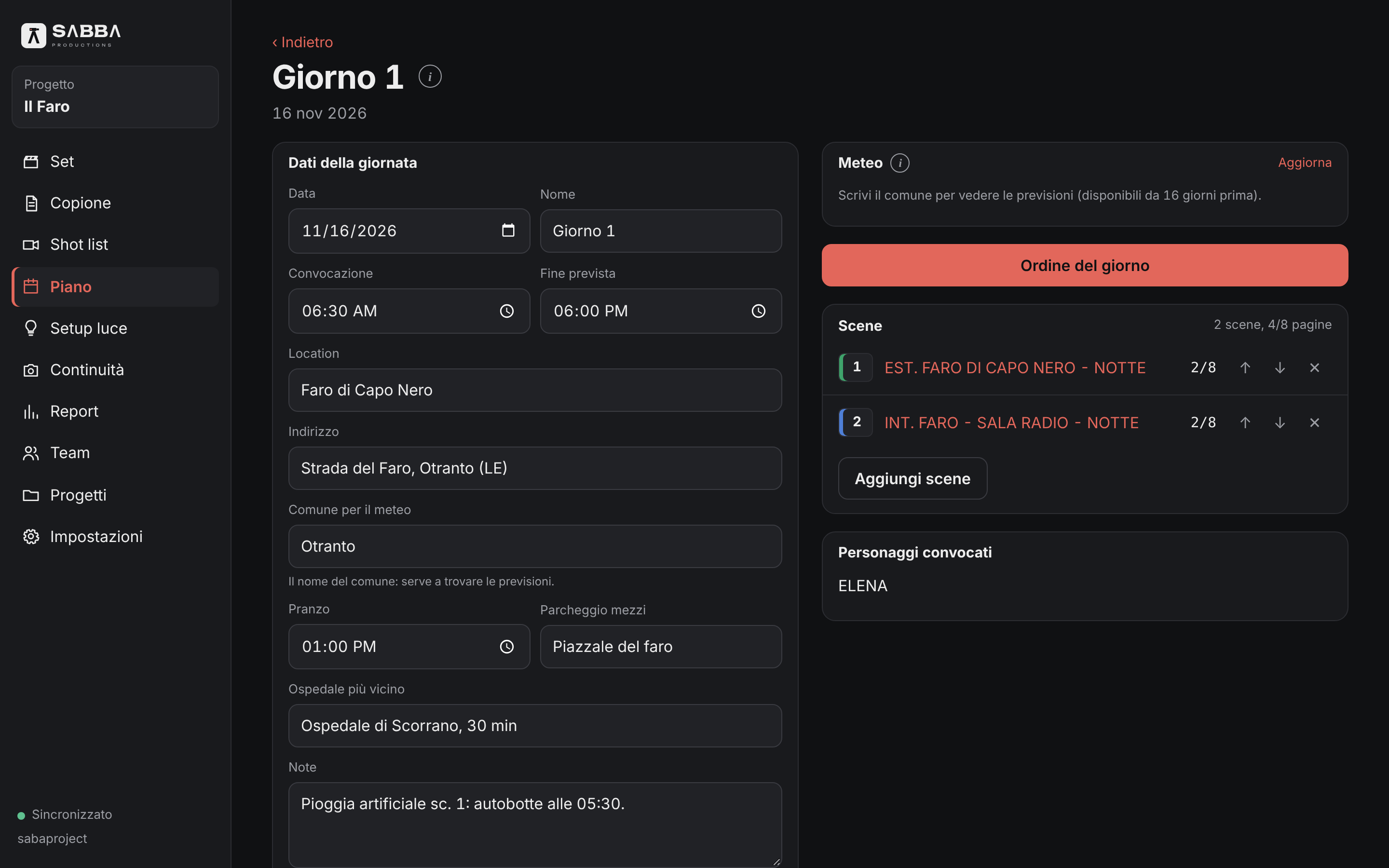
Shooting schedule & call sheets
Assign scenes to shooting days and print a call sheet with addresses, call times, the nearest hospital and the weather forecast for the location.
Shooting days and call times
Addresses and nearest hospital
Location weather forecast
Daily schedule and call sheetItalian interface · Enlarge screenshot
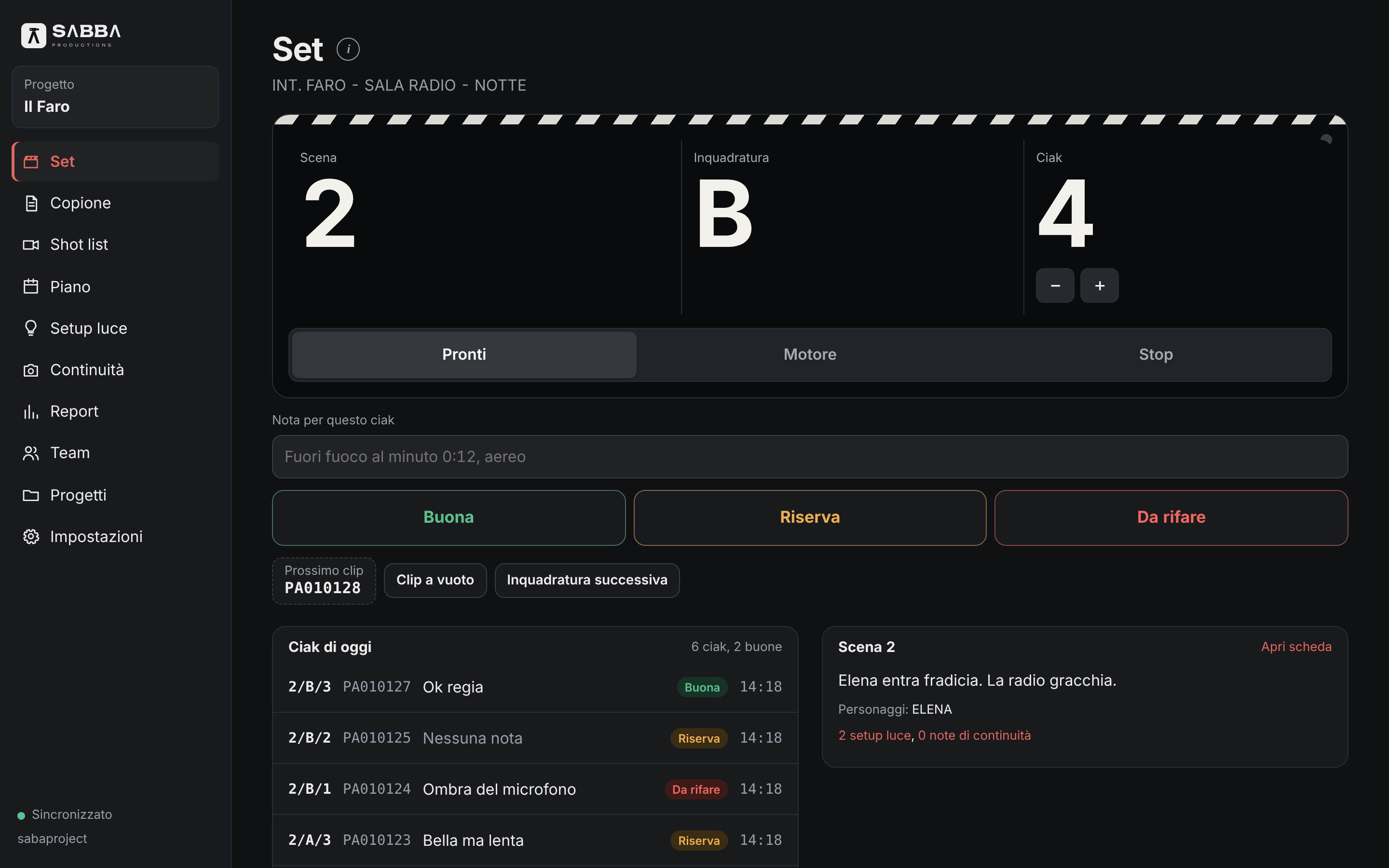
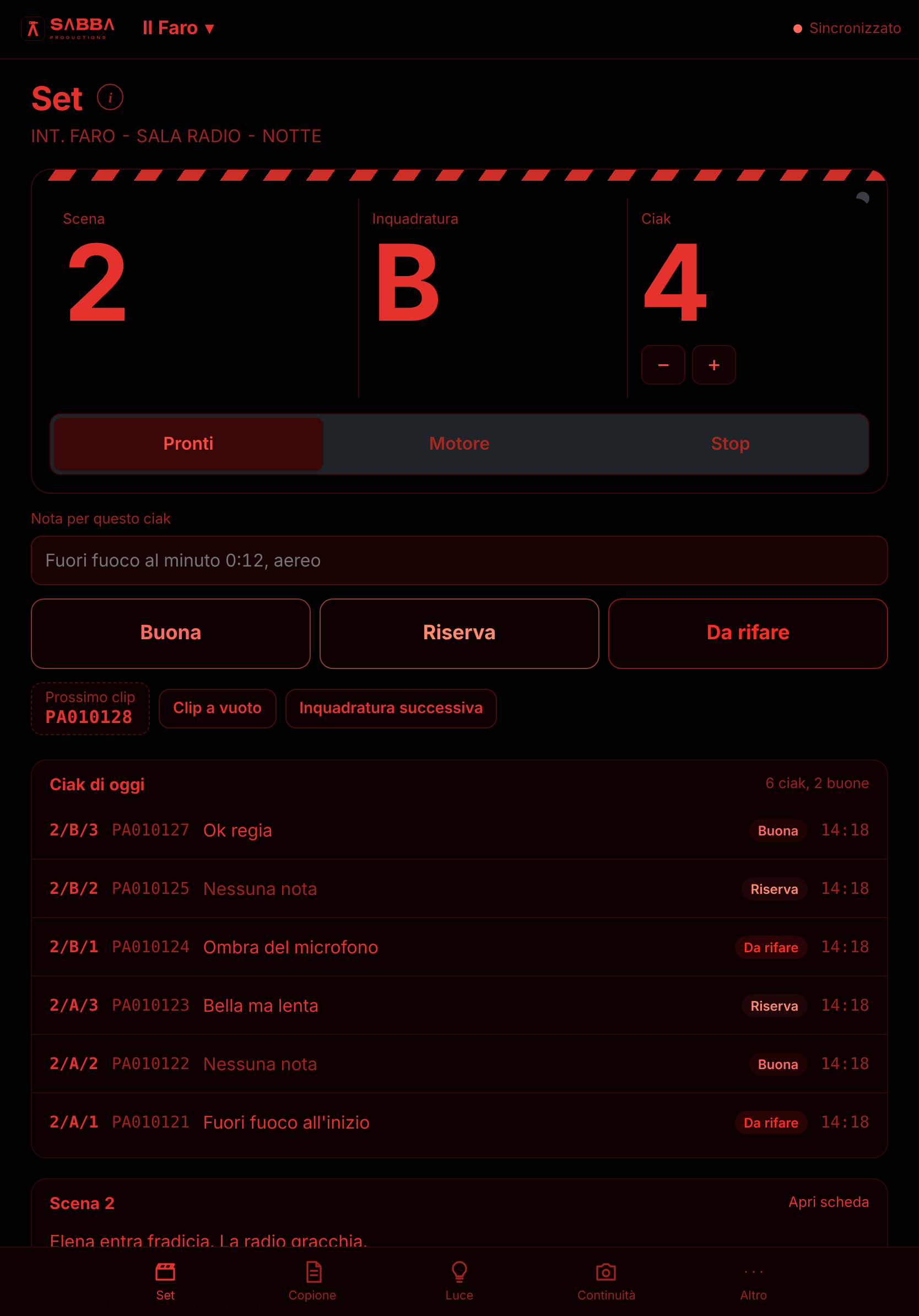
A digital slate with clear scene, shot and take numbers. Mark each take as good, hold or retake. Camera file names advance automatically with every take (currently in Lumix format; other cameras coming soon).
Good / Hold / Retake
Lumix file names
Other cameras coming soon
Set: slate, takes and clip namesItalian interface · Enlarge screenshot
06
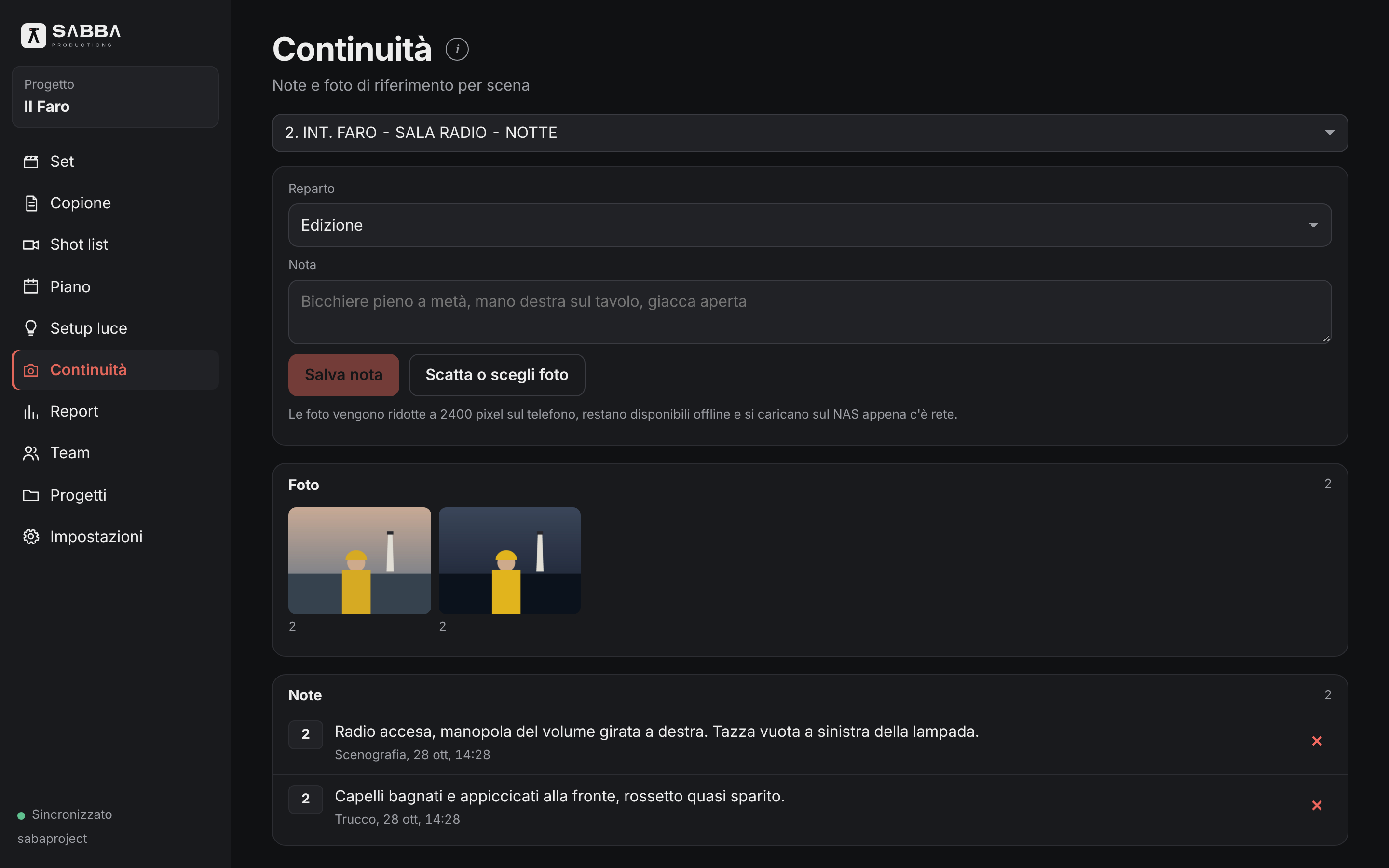
Continuity
Photos and notes linked to each scene, so you can match positions, costumes, makeup and props from one day to the next.
Scene photos and notes
Costumes, makeup and props
Continuity across shooting days
Continuity photos and notes by scene and departmentItalian interface · Enlarge screenshot
07
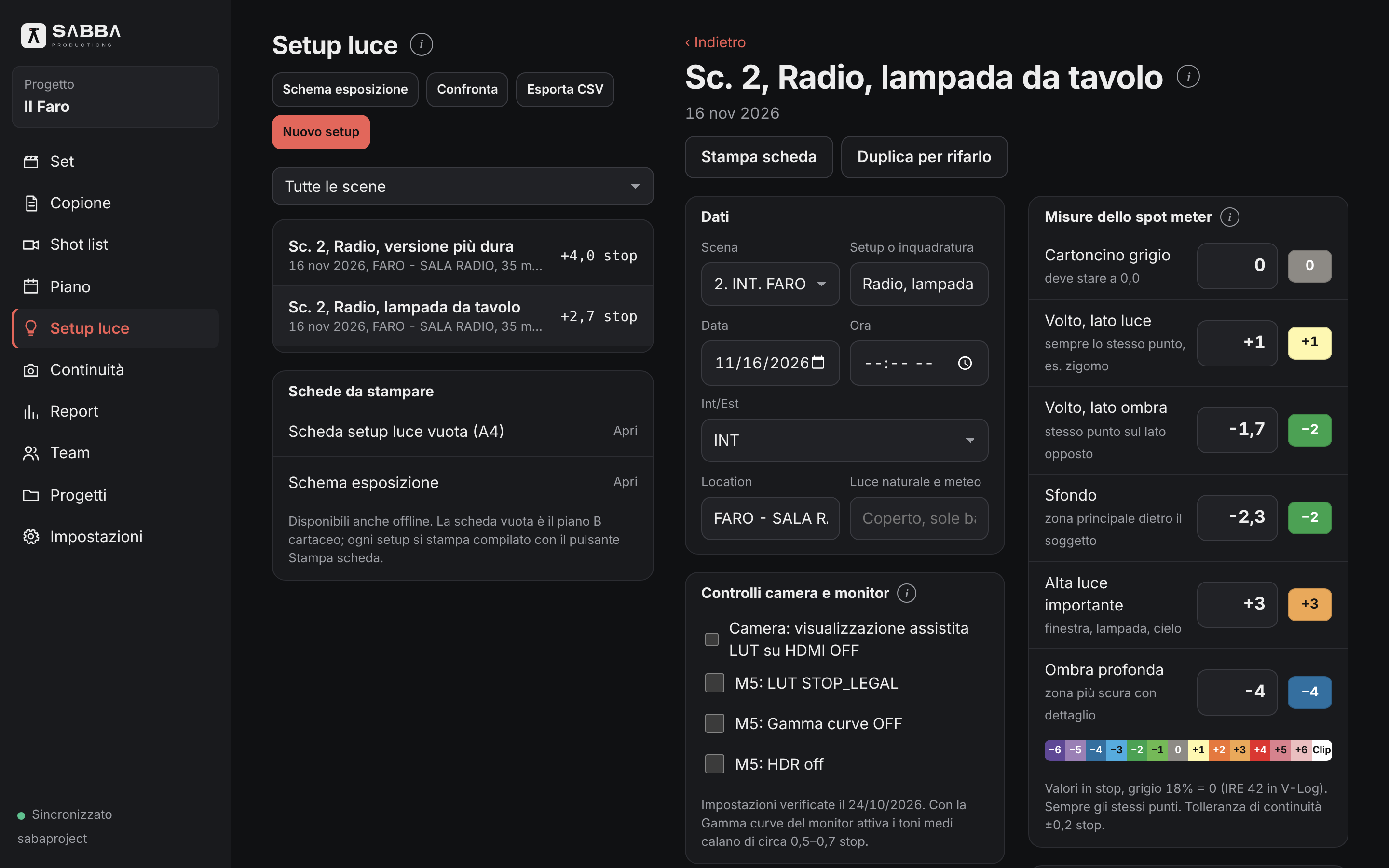
Lighting setups
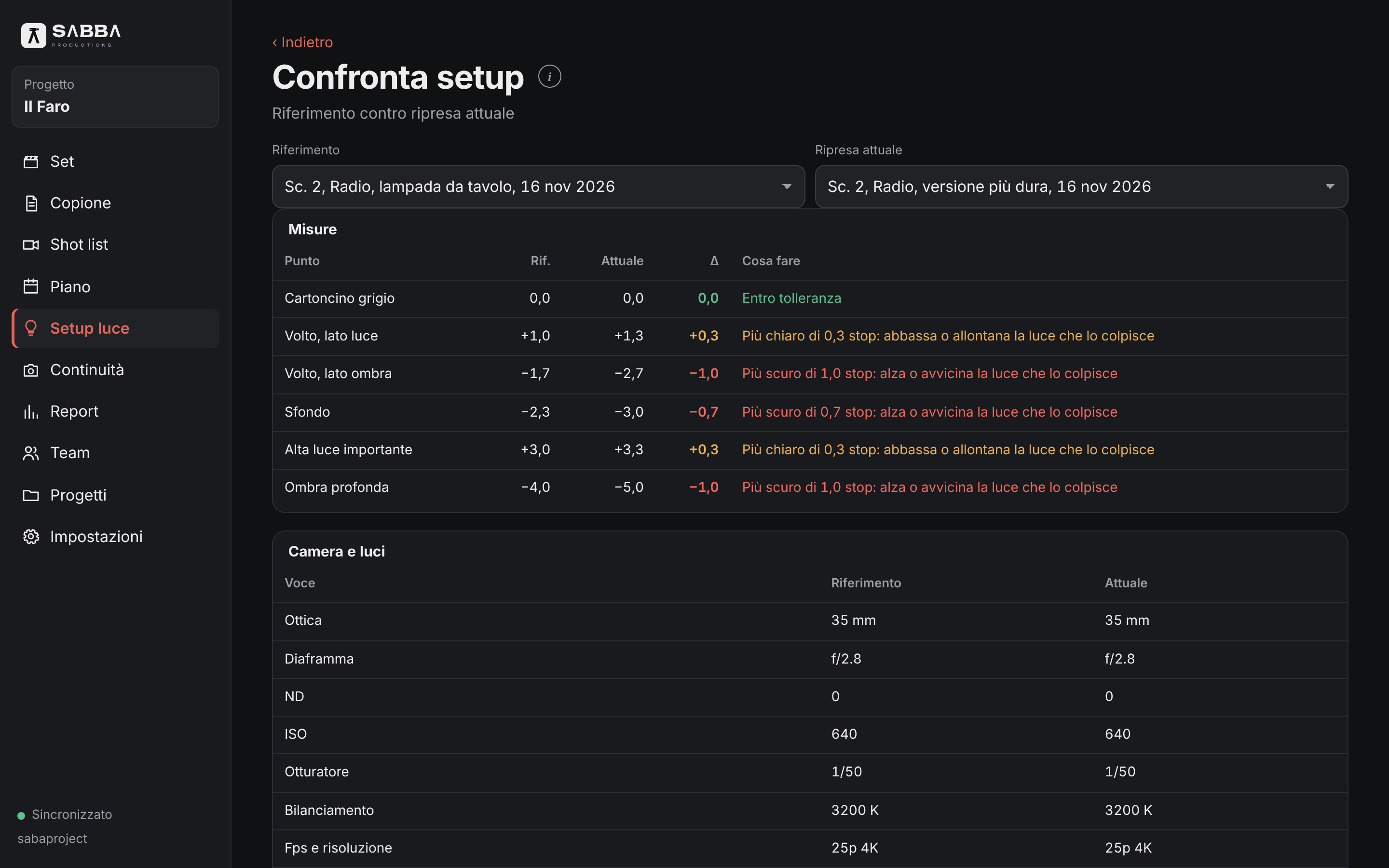
Six readings for each setup, from middle gray to highlights. The app calculates contrast ratios and stops, places them on the false color chart and compares two setups. Print a lighting sheet for the gaffer and lighting crew.
Six readings per setup
Stops, contrast and false color
Comparison and printable sheet
Lighting setup, readings and exposureItalian interface · Enlarge screenshotComparison of two lighting setupsItalian interface · Enlarge screenshot
08
Reports & exports
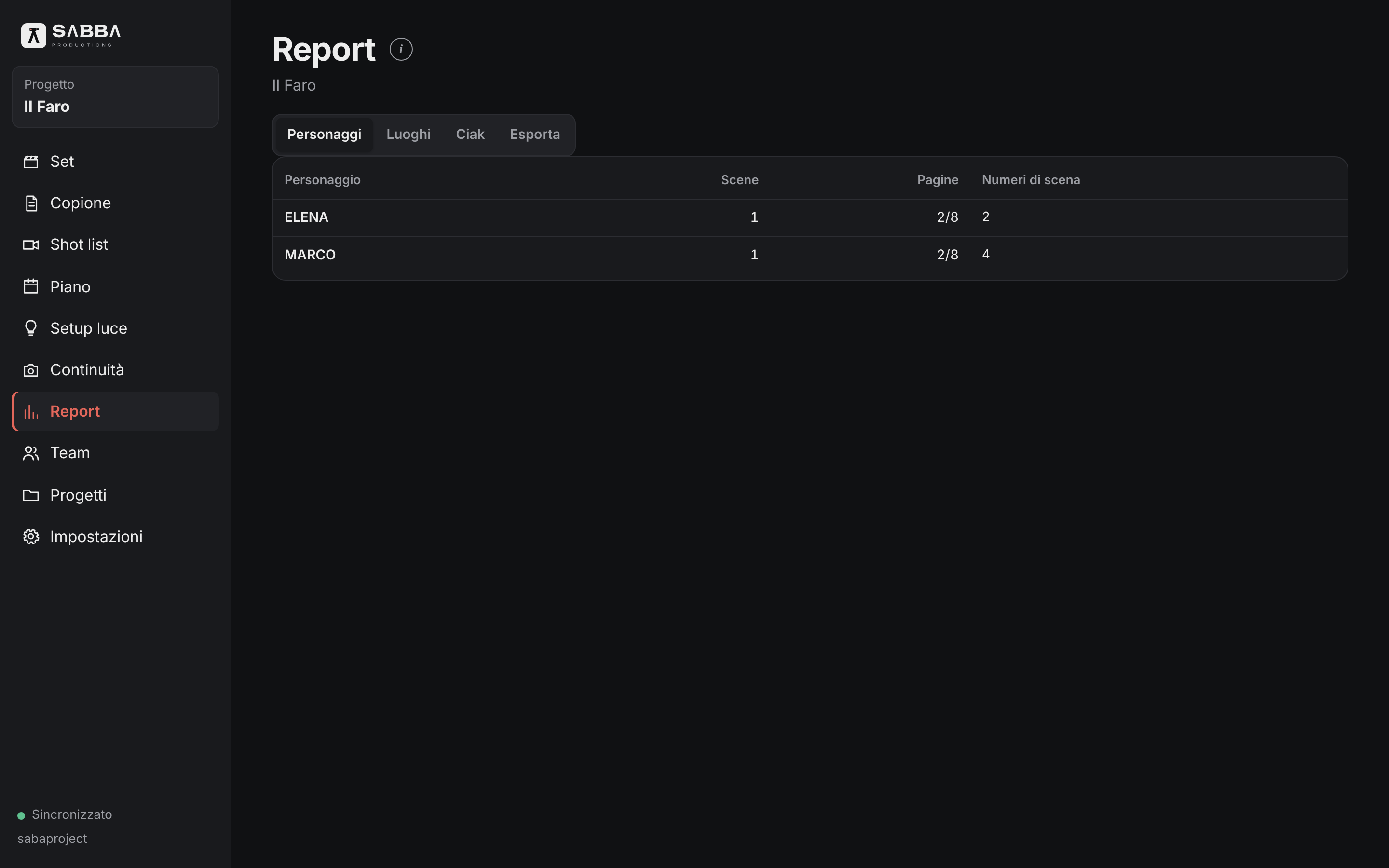
Take reports, CSV files for editing and production, and a complete export of your data whenever you need it.
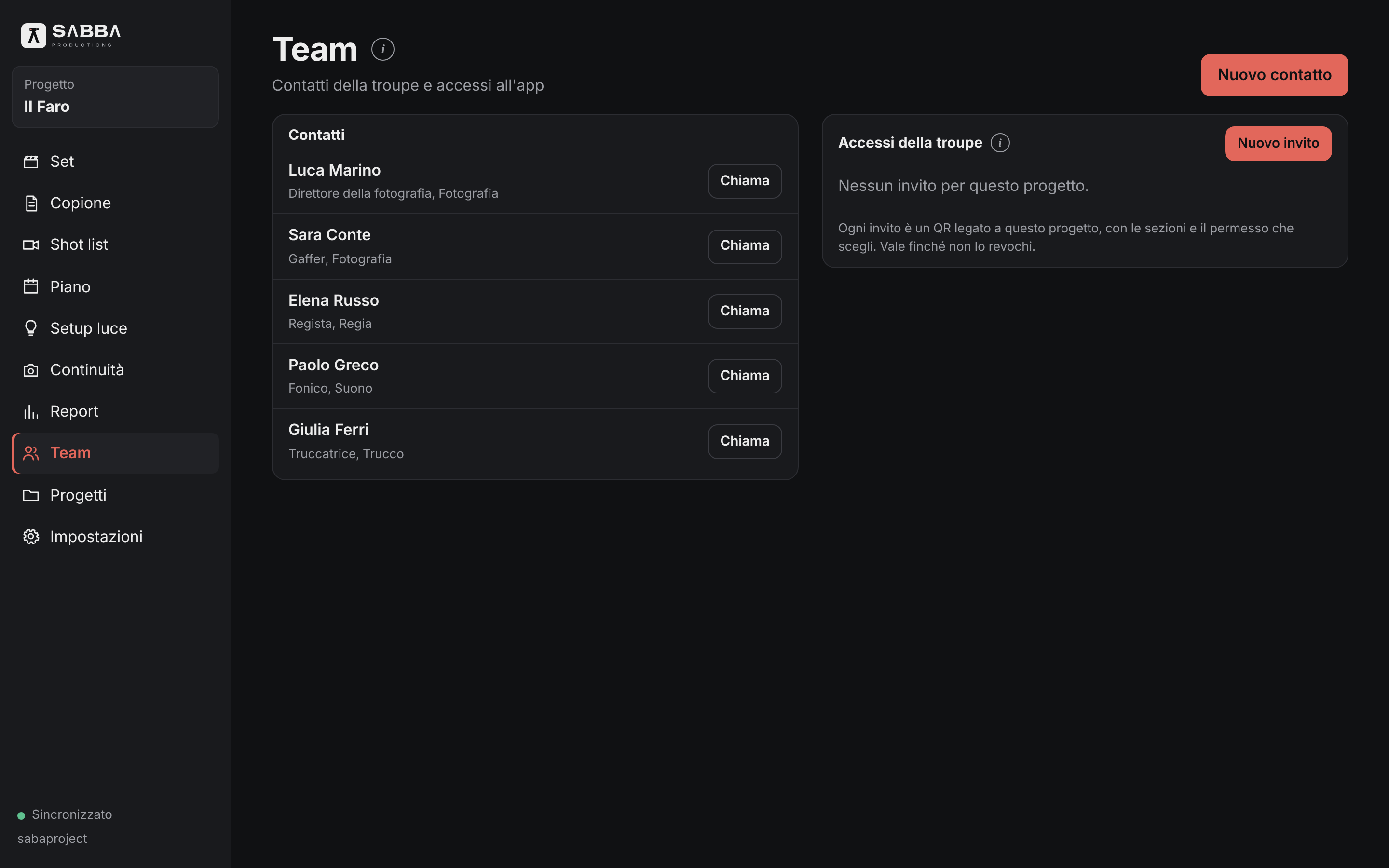
Invite through QR, WhatsApp or email. Each role sees only the sections it needs: makeup does not see the lighting plan. Permission to delete is separate from permission to edit.
QR, WhatsApp or email
Access by role
Separate permissions
Crew contacts and accessItalian interface · Enlarge screenshot
10
Offline & sync
Work without a connection, wherever you are. When the signal returns, changes from all phones merge automatically. If two people change the same field, nothing is lost and the app shows both versions. Red night mode lets you work in the dark without disturbing the set.
Offline work
Both versions kept in conflicts
Red night mode
Red night mode on the Set screenItalian interface · Enlarge screenshot
11
Data recovery
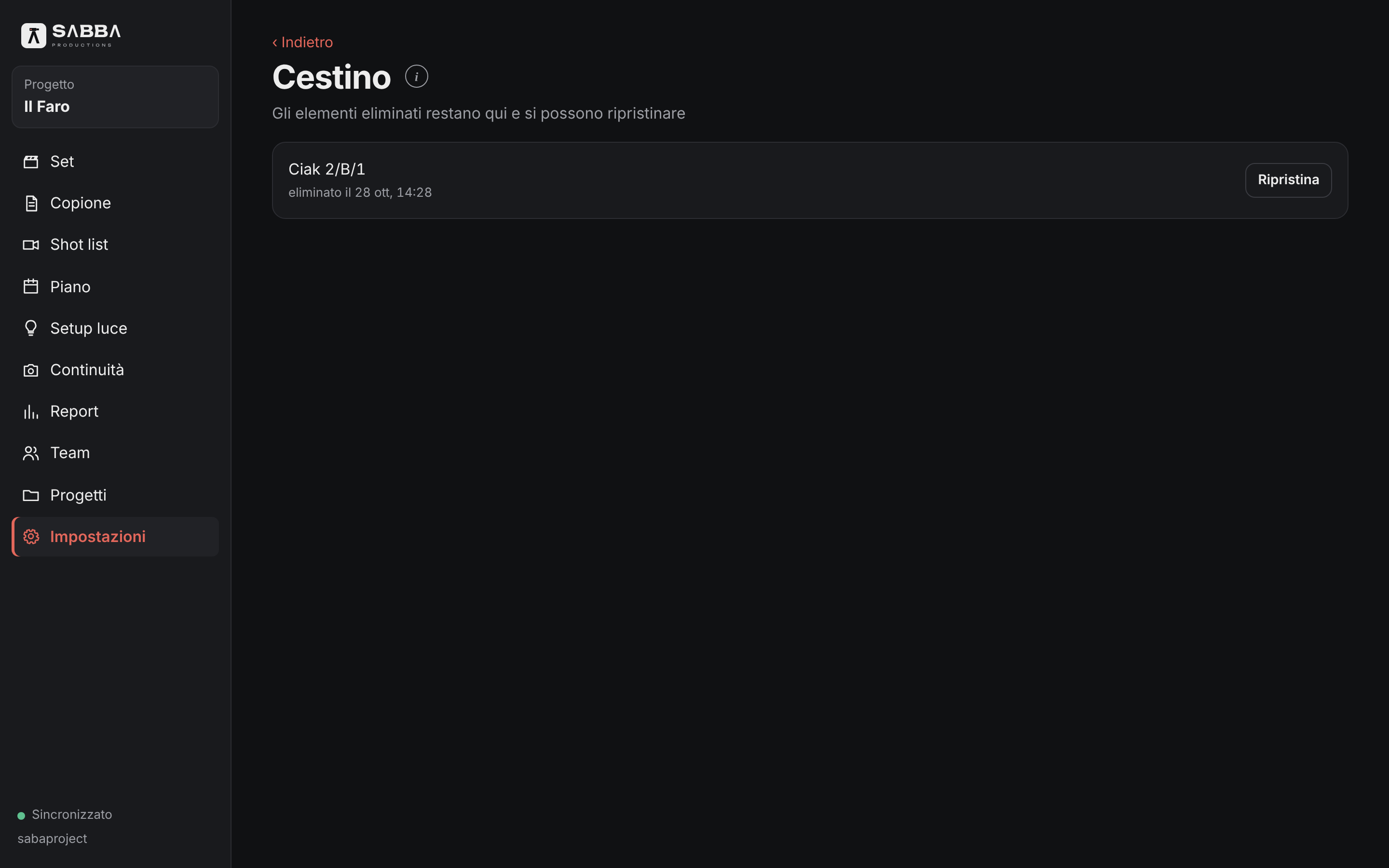
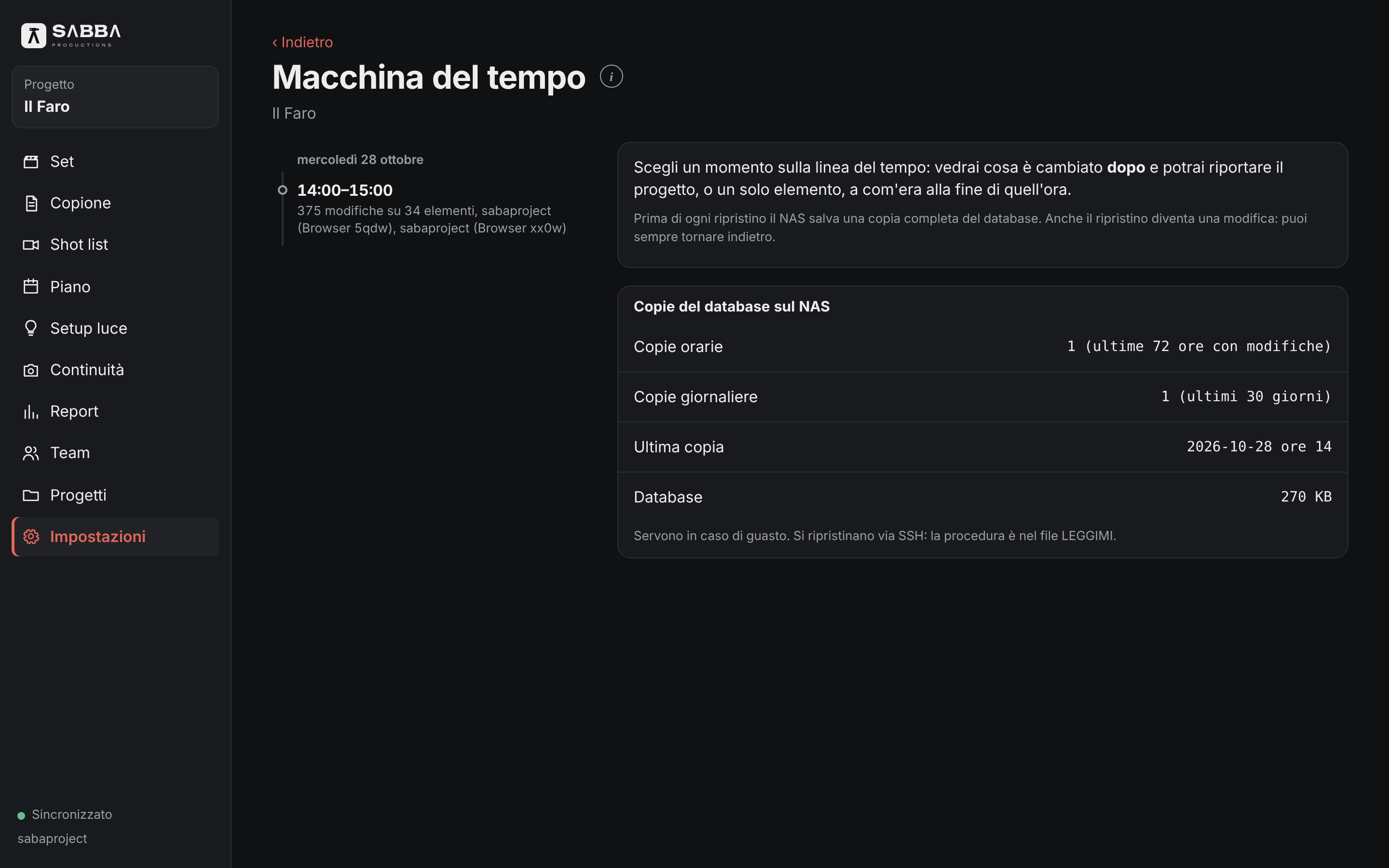
A recycle bin, history for every field and automatic backups. With the Team plan, the time machine restores a project to how it was at any previous point in time.
Recycle bin and field history
Automatic backups
Time machine with Team
Recycle bin and item recoveryItalian interface · Enlarge screenshotProject time machineItalian interface · Enlarge screenshot